

Best Practices
-
Frequently Asked BARD Questions

Everything you wanted to know about BARD and KLAS... but if your question isn’t here yet, please don’t be afraid to ask!
BARD itself is entirely within NLS’ purview and out of our control, but KLAS and BARD interact via PIMMS and the BARD Circ Load, with additional integrations likely in the future. If you aren’t sure who to contact about a problem with BARD and/or KLAS, you are welcome to copy both us and NLS, or start with us and we’ll refer you as needed.
Table of Contents
- First and Last Name for an Institutional BARD Account
- Shared email addresses
- Setting which email is used for BARD
- Uploading the BARD Circulation Statistics
- BARD Circ load errors
First and Last Name for an Institutional BARD Account
How do I add the First and Last Name for an Institutional BARD Account?
On the Patron record’s Contacttab, on the default email contact (“DefEM” contact preference), include the institutional user’s first and last name in the Note field.

This can be entered as either “John Doe,” or as “Doe, John.”
If there is any additional text in the field (such as a middle name, job title, etc):
- When there is a comma anywhere in the field, everything ahead of the comma is sent as the Last Name, and everything after the comma is the First Name. For example:
“Smith Jones, Susan” would be First Name: Susan, Last Name: Smith Jones
“Doe, John - Activity Director” would be First Name: John - Activity Director, Last Name: Doe - When there is no comma, the final word is the Last Name, and everything else is the First Name. For example:
“Kelly Sue Jones” would be First Name: Kelly Sue, Last Name: Jones
“John ‘Activity Dir’ Doe” would be First Name: John ‘Activity Dir’ Last Name: Doe
Setting which email is used for BARD
If a patron (or institution) has more than one email, how do I choose which one is for BARD?
KLAS can store as many emails as a patron gives you, but only the DefEM / Default Email Contact Preference will be sent to PIMMS and used for the patron’s BARD account.
When setting up a patron for BARD, make sure that the BARD email is set as the DefEm contact preference. Use the Add Contact Preference (gold star) button in the toolbar, or select it from the Functions menu.
If a patron previously registered for BARD under a previous email and wants to switch, use Add Contact Preference to change the DefEm contact preference in KLAS, or simply update the email record to the new address. After making the update, confirm that the change is reflected in BARD.
Uploading the BARD Circulation Statistics
How (and why) do I upload the BARD Circulation Statistics?
The BARD Circulation Statistics need to be uploaded into KLAS so that KLAS has an accurate record of the patron’s HasHads and to update the patron’s Last Served Date based on their download activity, preventing you from suspending patrons that are actively using the service.
If no one at your library has been uploading the BARD Circs, it’s up to you how far back you want to go. We would recommend loading the past three months (and not bothering to fix errors if you decide to go back further). But most importantly: we very strongly recommend loading future BARD Circs going forward.
To minimize errors, the best time to load BARD Circs is after the next MARC load; so the June BARD Circulation Statistics should be loaded after the first July MARC records load.
Getting the BARD Circ Statistics
For instructions on how to get the .csv files to load: see 2026 KLAS Users' MiniConference - NLS & User-Presented Sessions.
Remember:do not open the .csv file (at least until afterit has been loaded into KLAS). Excel will reformat the file so it does not load correctly, even if you do not save any changes.Loading the BARD Circ Statistics
Once you have the file:
- In the Patron module, use the Tools menu to open Load BARD Circs.
- Use the Browse button to select the statistics file to load.
- Change the Run Option to Load via Batch Manager and enter your email address.
- Set the desired start date and time; this can be right away, or it can be overnight.
- Select Begin Load.
The job will be sent to the Batch Manager to run as scheduled, and you can either close the window or schedule the next file to be loaded. An error file will be emailed to you with any BARD Circs that couldn't be loaded; see below for tips on resolving these errors.
BARD Circ load errors
What do I do about BARD Circ load errors?
There are essentially two categories for BARD Circ load errors: Patron errors, or Title errors.
Patron Errors
The most common patron errors are “Could not find Patron,” errors like:
- Could not find Patron SMITHJ01.
- Could not find Patron .
To clear these Patron errors, you need to find the patron, and correct either the patron’s Barcode in KLAS to match BARD, or fix BARD to match the Barcode.
If you fix the BARD side, send the original csv to us with the patron’s old and new BARD ID, and we’ll send back the corrected csv for you to load.
If you’re having trouble finding the patron in KLAS based on the information in BARD, NLS is better positioned to help identify them.
The other patron errors that can occur are when the patron is not in Active status, or does not have a Medium Profile for the material they downloaded:
- ?^?^ipUpdPatMedium in the Stats PLIP cannot find the Pat Medium record for patron SMITHJ01 and medium B, and the Create CGM control file is set to no.^ipfindpatmediumobj ks/statsplipp.p:ipupdpatmedium ks/statsplipp.p^
To clear these Patron errors, you need to correct the patron’s Main Status to Active, add the appropriate Medium Profile, or set the Medium Profile’s status to Active. If the patron is no longer (and should not be) Active, you may choose to disregard these errors.
Title Errors
The most common Title errors for monographs (books) look like:
- Could not find KLASID 135950.
- Could not find KLASID 00039.Could not find KLASID 00039.
These are usually just records that have not yet been added to your KLAS catalog. They may be new titles that will be in the next batch of New MARC records, or they may have been missed (in which case, other libraries are likely missing them, too). It may also be a title that was deleted from your catalog.
To clear these Title errors, send us the KLAS IDs (preferably with the full error file and original .csv). We’ll restore the record if it was deleted, or make sure the title(s) are included in the next MARC load: either the New MARC file or the BARD Reload file.
Title errors may also refer to the Serial title record, or the caption that tell KLAS what Issue Names to expect:
- Could not find Serial rollingstone.
- Could not compute the IssueName for Serial nlsnews.
For Serial errors, we generally need to either add the Serial record or add/adjust a Caption.
To clear Serial Title errors, send your error file and the original .csv file of BARD Statistics to us at
We will either fix your records, or make sure the record is added.
-
Navigating KLAS 101 Webinar

Learn the basics of KLAS in this introduction webinar for new users, or those looking to fill in a few gaps in their foundation. Topics include standard toolbar functions, using browse tables, and comments. These fundamentals are useful throughout KLAS, for both Library for the Blind and Print Disabled (LBPD) and Instructional Resource / Materials Center (IRC/IMC) users.
Resources & References
Hands-on Practice Worksheet
Session Recording
Timestamps of Topics Discussed:
- 2:30 Logging into the KLAS Training Database
- 6:38 KLAS Header Info
- 7:29 Using Find
- 9:56 "Begins" Searching
- 11:09 Searching for a phone number
- 13:10 Recent list
- 13:28 Comments function
- 14:47 Browse Tables
- 16:53 Sorting columns in a browse table
- 17:59 Filtering a browse table
- 19:00 Moving columns in a browse table
- 20:00 Saving browse table column positions
- 21:20 Exporting data to Excel from a browse table
- 25:12 Resetting browse table column positions
- 27:40 Transaction Buttons (Add, Update, Delete, Reset, Cancel)
- 39:22 The Functions Menu
- 43:50 Example function: How to erase Has-Hads
- 50:35 About KLASusers.com
-
Required fields for NLS Acknowledgements
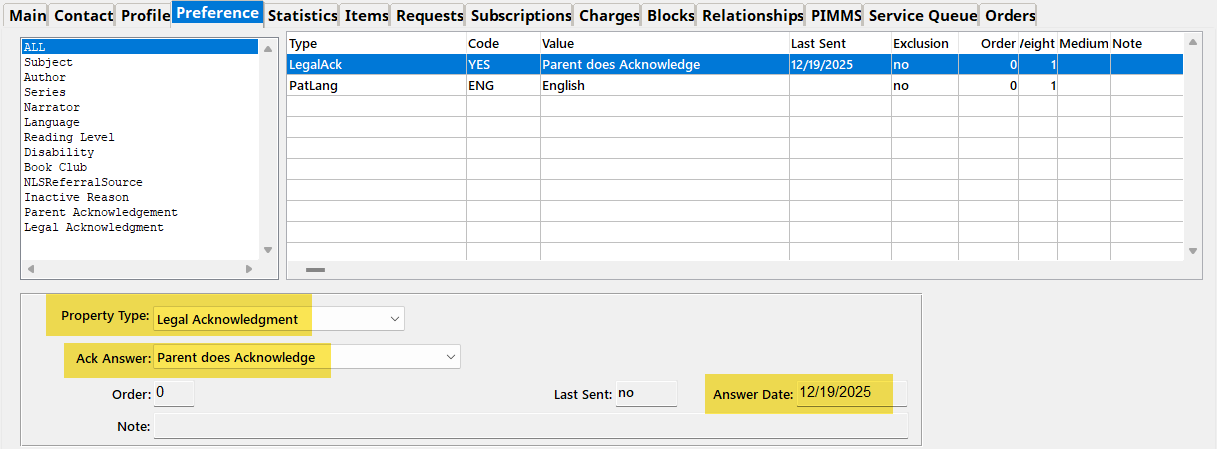
As NLS makes sure that the "I"s are dotted and the "T"s are crossed on all the open collection acknowledgements, here's a run-down of all the required fields:
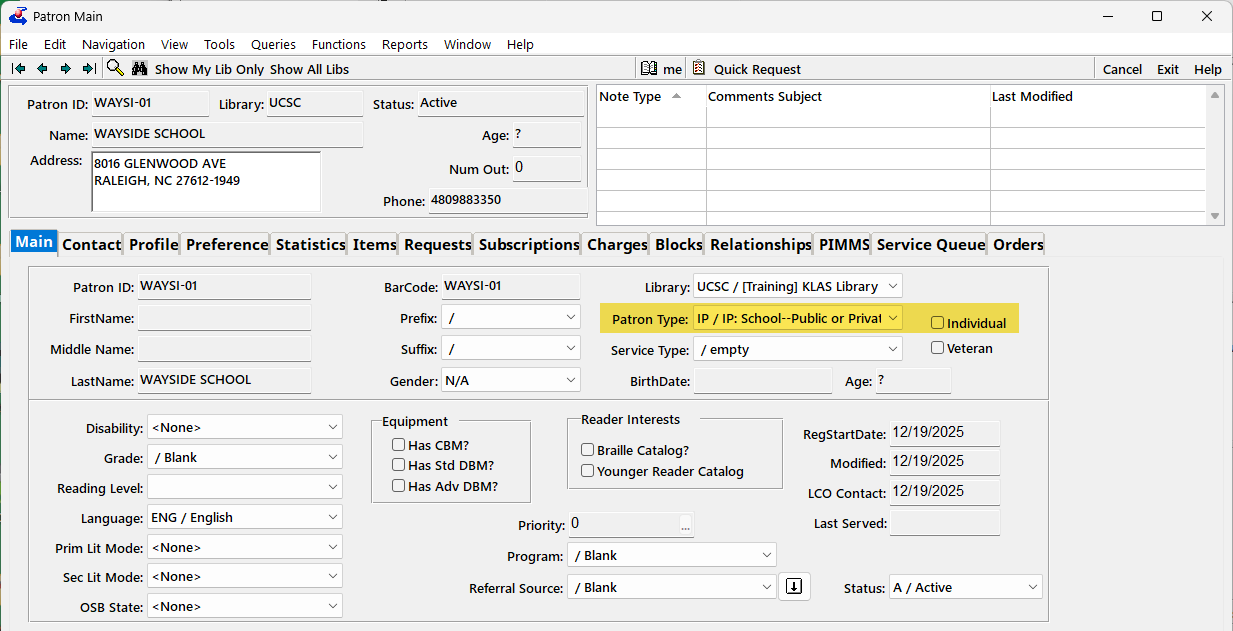
1. Patron Main
On the Main tab, the relevant Patron Types are:
- IP or IS for Institutions (make sure that Individual checkbox is blank)
- For juveniles, any patron type that begins with P will be checked for for the age (make sure that Individual checkbox is marked)
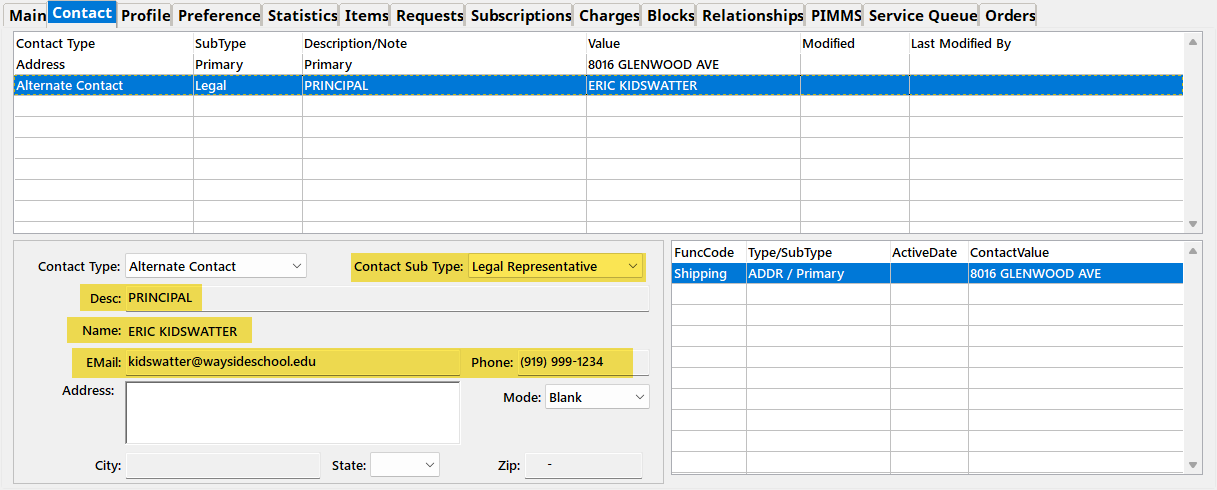
2. Contact tab
On the Contact tab, make sure the Alt Contact is present and complete:
- Legal for Institutions
- Parent or Guardian for juveniles
- Title in Description field for Institutions
- Full Name for either
- Phone and email for Institutions (corrected 2/17/26. Phone and email are optional for juveniles.)
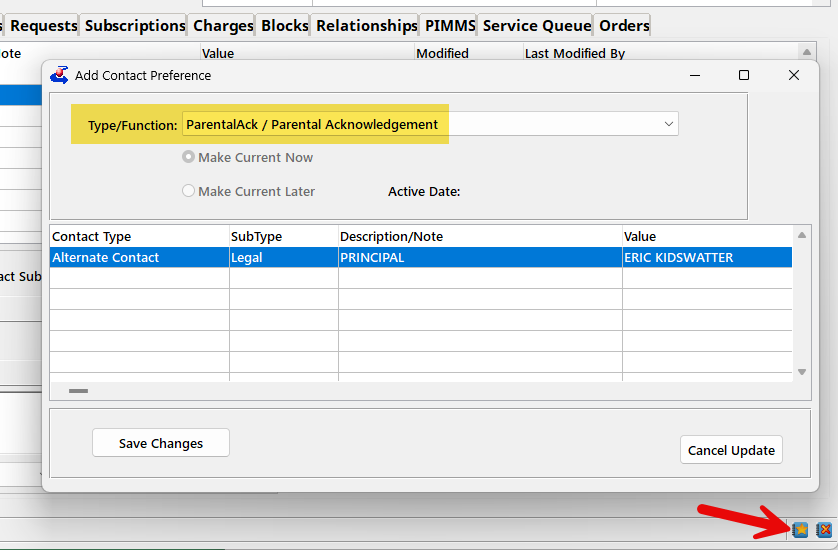
2b. Contact Preference
If there is more than one Alt Contact of a relevant SubType (such as two Parents on a juvenile's account), you need to specify which one to sync to NLS as having provided the Acknowledgement Answer.
Do this by setting a Contact Preference for the ParentalAck.
Finally, you need the Property record (aka Preference) recording the Answer and the Answer Date.
- For Institutions, the Property Type is Legal Acknowledgement
- For Juveniles, the Property Type is Parental Acknowledgement
- Either way, the answers are likely worded as "Parent Does Acknowledge" etc.
- Include the Date Answered
Questions & PIMMS Error Report
If you aren't sure why an account is included in NLS' list of non-compliant records and/or in your PIMMS Error Report, please check each of the above fields, and let customer support know the Patron ID if you still need help! If the record was in your Error Report, please include the text of the error as well.
-
TBT Strategies

The time has come: Talking Book Topics (TBT3 / TBT4) is being handed over to the network libraries for duplication.
Per our previous article on the topic: you have two options for distribution.
- The quickest, easiest, simplest option is to send it with your other NLS serials (usually as the DS medium). If many of your TBT subscribers also get other serials, they can travel on the same cartridge to save you some labor.
- The option that will give you the most control and the best statistics is to give it a unique medium (such as TBT). This option allows you to send the TBT on a different day of the week from your other serials, and ensures that a patron already at cutoff for serials can still get the new TBT so long as they’ve returned the previous one.
Let us know which medium you want to use, and we’ll get the Serial title set up for you. Either way, new issues will load automatically ready-to-duplicate just like all the former MOCs.
The rest of this article discusses options for reviewing and weeding your subscribers list, sending a form letter, handling the TBT Order Form, and available support.
You have options for how to move forward depending on how hands-on you want to be: if you can invest some time and/or send an Opt-In form letter now, it can save you time duplicating TBT issues for patrons that won’t make use of them.
Reviewing your Subscribers
As discussed in the previous article, we recommend reviewing your subscriber list to make sure that you are only duplicating the catalog for patrons that actually want it.
If you only subscribe patrons to TBT on request and are comfortable duplicating TBT for your current active subscriber count, we can copy that subscriber list to the new serial. On the other hand, if you have a high number of subscribers, and if you have previously subscribed people to TBT by default, you might want to send a form letter (discussed below), and / or do some review and weeding of your subscriber list.
But how to go about doing that?
Patrons to Subscribe:
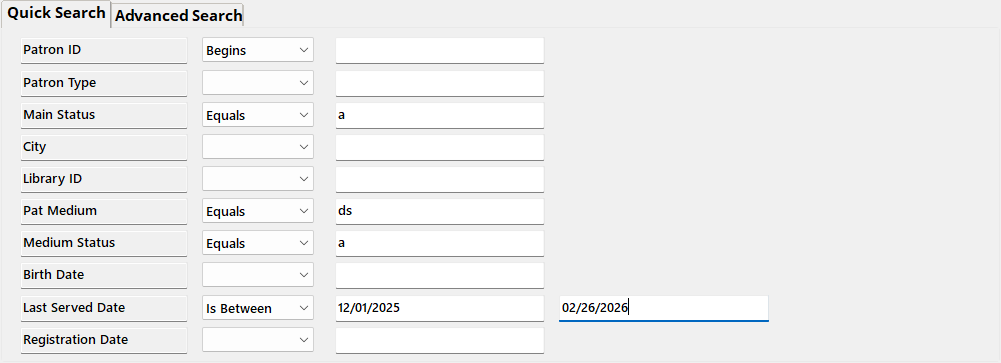
If you are going to send Talking Book Topics as a DS, you can leave anyone already getting other DS serials subscribed to it without any extra work. To find these patrons, Query in the Patron module for:
Quick Search
- Main Status | Equals | A
- Pat Medium | Equals | DS
- Medium Status | Equals | A
- Last Served Date | Is Between | 12/01/2025 | 02/26/2026
[optional parameter to narrow results to patrons that have gotten something in the past three months]
Advanced Search
- Subscription | KLAS ID | Equals | SER-TBT4
[or may be SER-TBT3 in your database] - Subscription | End Date | Is blank

Additional “Patrons to Subscribe” query options:
If your staff adds TBT requests to the Request list instead of directly to the Service Queue, requests can be queried (although the time elapsed since the last TBT makes these more likely to have all gone out by now):
- Media | Pat Medium | Equals | DB
- Media | # Requests | Does not Equal | 0

You could also try Querying for all subscribers with recent DB activity (just sub DB for DS in the first query in this article).
Patrons to Review:
Use Merge Queries to remove the above results from the full subscriber list to see who’s left. Start by running the above query and opening the Query Set by double-clicking any result.
Then query for all active patrons with a subscription to TBT4:
Quick Search
- Main Status | Equals | A
Advanced Search
- Subscription | KLAS ID | Equals | SER-TBT4
[or may be SER-TBT3 in your database] - Subscription | End Date | Is blank
Again, make sure to open the Query Set instead of just exiting the results screen.
Finally, use the Queries menu to select Merge Queries, and set the following:
- Query A: your most recent Query, with all active subscribers
- Query B: second most recent Query, subscribers that are already active in DS (or one of the other “patrons to subscribe” queries.
- Merge: in A, not B
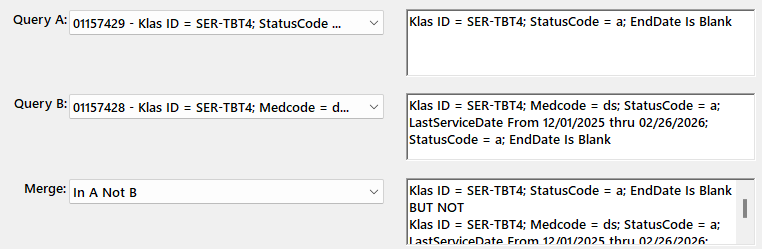
Export this list to Excel with a high enough Max to include all the Merge results, Visible Fields only, for a list you can divvy between staff and/or make notes on.
Double-click any result in the table below to open the Query Set to print Labels for a form letter, to do another merge to subtract another “patrons to subscribe” query from these results, or to start reviewing results in KLAS.
If this still gets you an overwhelming number of results, feel free to get in touch with Customer support to talk through your options!
What to Check For:
Once you have a list of patrons to review, what are you looking for?
Other than general activity and known patron preference, check for signs that the patron has actively been requesting titles. In addition to the Requests tab, you can look at the Items Tab “Selected By” column for QuickRequest or Web. If a patron has just been getting titles by preference, and particularly if they have been requesting titles via the WebOPAC, do they really need or want a recorded catalog? But if they’ve been getting a lot of titles from Quick Request, they got those numbers somewhere–and TBT is a likely source.
You can also watch for BARD patrons. While just having a subscription to SER-DDB9 doesn’t mean the patron is comfortable using BARD, you can check for downloads on the patron’s Items tab as well. If you use a Serve Type of BARD or OB for your download-only patrons, they can easily be excluded from your subscriber list.
Finally, watch for blocks. If a patron just has a temporary block to hold their books while they are on vacation, that doesn’t need to impact your decision. On the other hand, if they have a block for returned mail and no one has been able to contact the patron for over six months, you probably don’t need to duplicate the TBT for that patron just for it to be returned to sender.
Form Letter
You may wish to send notification to all TBT subscribers, or just those targeted for review, letting them know about the change in distribution and asking if they want to remain subscribed.
Simply making the duplicated version of the TBT strictly Opt-In rather than trying to decide which subscribers to keep may be the best option for some libraries, although it does require a print cost for the mailing itself, and it places the burden on patrons who may not be able to easily read and reply to a letter or postcard.
For sending a letter, you can filter the SER-TBT4 subscribers tab to only show Active patrons, and export to excel with All Fields for a mail merge.
Or you can use either the all Active Subscribers query above or the merged query set with the Patron labels function. While in the Query Set, use the Functions menu to select Labels. Switch the radio button to “Entire Query,” and contact us if you need a new Label Stock set up.
About the Order Form
Do you want to print and mail the order form to your patrons? Or only to patrons that request it?
We can add a new Large Print serial for the TBT Order Form, allowing you to subscribe only the patrons that actively want the order form. The downsides of this approach:
- Timing: the new issue of TBT will show up and start going into orders as soon as NLS distributes the file, even if the order form isn’t posted or printed yet.
- Once the order form is available, you would need to manually add the new Issue as you would for a local serial.
Available Support
We will be getting the serial record added for all KLAS libraries. If you want it as a new Medium, we are happy to do all of that set-up as well.
Once you have the new record, you can start adding the subscribers you know you want to keep. If it’s an extensive list even after the review and curation above, we may be able to help.
There’s no particular need to cancel or remove the subscriptions to the SER- version. As with the big MOC transition, I’d recommend leaving them for now so you have the information available to reference. If you want them cancelled for cleanliness sake later on, we can do so.
Finally, remember that the forums are here to help you all help each other! If you create a form letter (or recorded announcement), have other ideas of criteria to check for (either for the “to subscribe” column or the “don’t subscribe” column), or have other strategies and ideas for serving your patrons better for this transition–please share in the comments below!
